PRAGMATA RTX 5060 Ti Guide Best Settings for Maximum FPS and Stability
Desktops ,
Monitors
Capcom recently released two AAA titles: first, Resident Evil Requiem, for which we recently provided a guide on using NVIDIA DLSS 4.5 to achieve the best experience. The second is PRAGMATA, a new sci-fi action-adventure game. Its unique control scheme, combined with puzzle-integrated combat, has earned the game 'Overwhelmingly Positive' reviews on Steam and from media outlets alike. Since both games support NVIDIA’s latest AI technologies, today we will show you how to run PRAGMATA smoothly on the MAG Infinite S AI equipped with an RTX 5060 Ti.
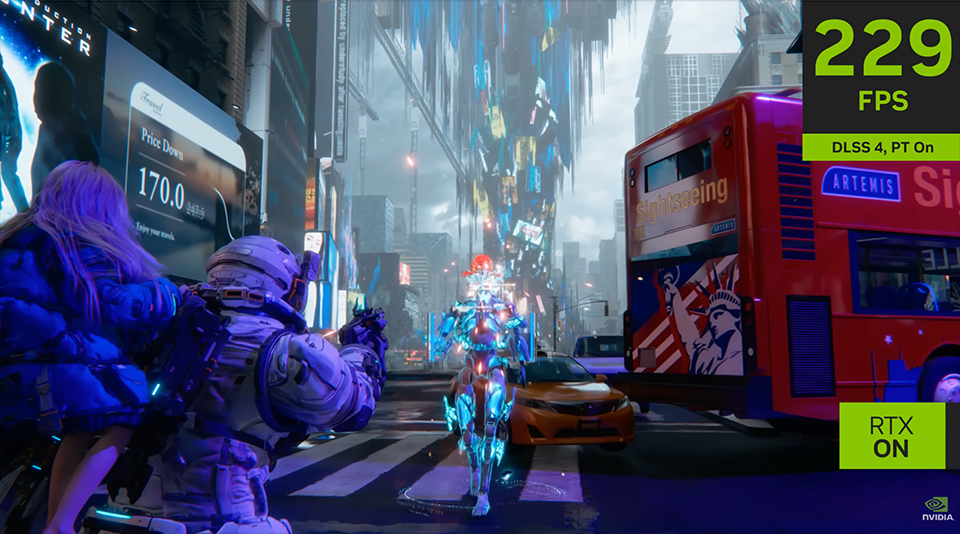
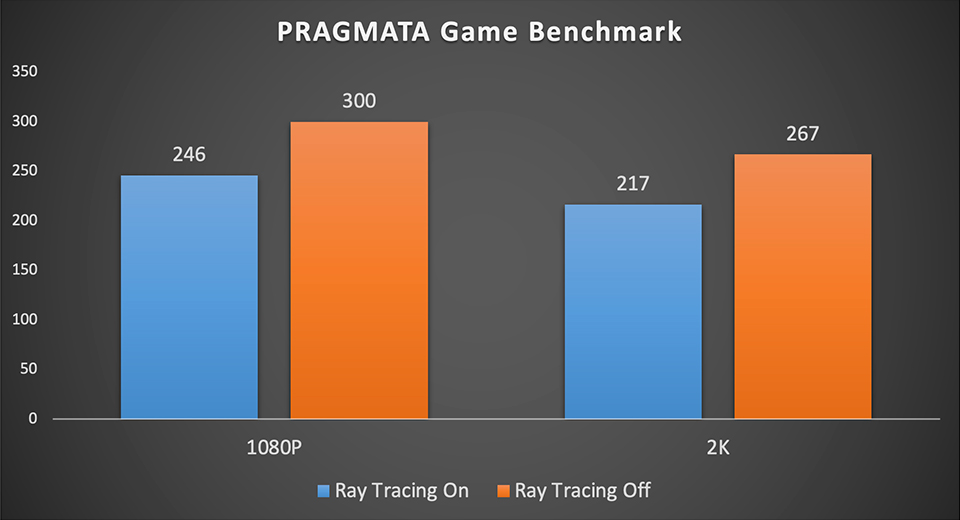
NVIDIA’s 60-class graphics cards have always been popular among the majority of gamers. As an entry-level GPU series, these cards fulfill basic needs while meeting the requirements of most modern games. Notably, since the release of NVIDIA DLSS 4, entry-level GPUs have been elevated to a new class, with performance even approaching advanced levels. Previously, entry-level GPUs typically targeted 60 FPS; with earlier DLSS Frame Generation, that climbed to 80 FPS. Nowadays, the RTX 5060 Ti leverages the latest Tensor Cores and AI technology to easily reach 300 FPS at FHD resolution. This massive leap in performance offers a significant benefit to gamers.
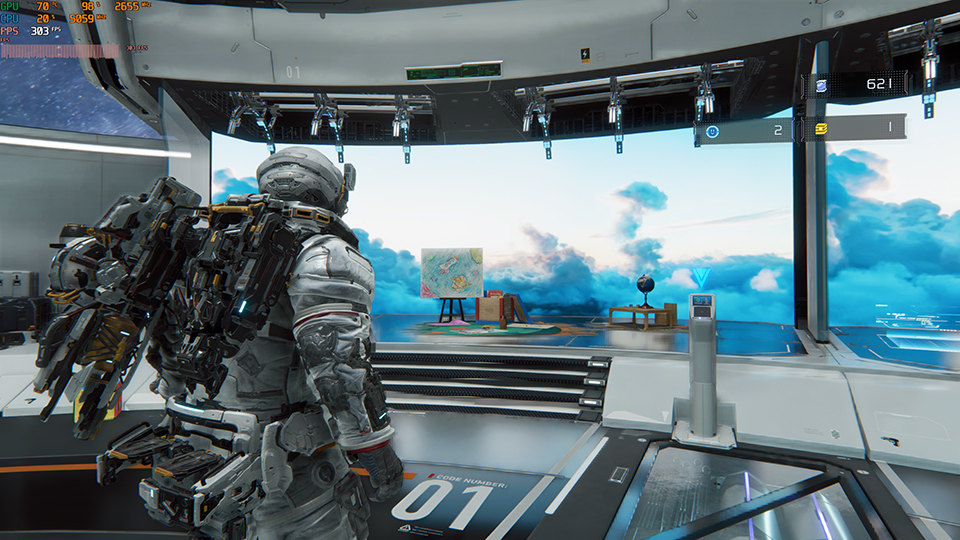
Moreover, Ray Tracing is another game feature which makes the gaming experience more immersive. However, it also puts a heavy load on the system. This creates a dilemma for entry-level GPUs, where users often have to choose between image quality and high frame rates—a balance usually reserved for high-end GPUs like the RTX 5080 or 5090, especially at 4K resolution. Fortunately, DLSS 4.5 makes achieving both possible!
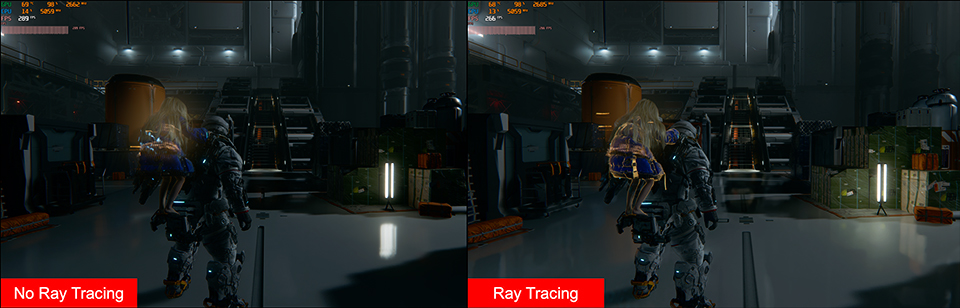
Enabling Ray Tracing provides a more immersive feel during gameplay, but it still consumes a fair amount of resources, affect the game frame rate. Ultimately, it depends on what kind of experience you are pursuing. With the support of DLSS 4.5, both configurations can deliver excellent results.
Let’s dive into today’s settings guide. First, ensure your NVIDIA App and graphics drivers are updated to the latest versions. Then, follow the steps below to optimize your configuration and ensure the game runs at its best.
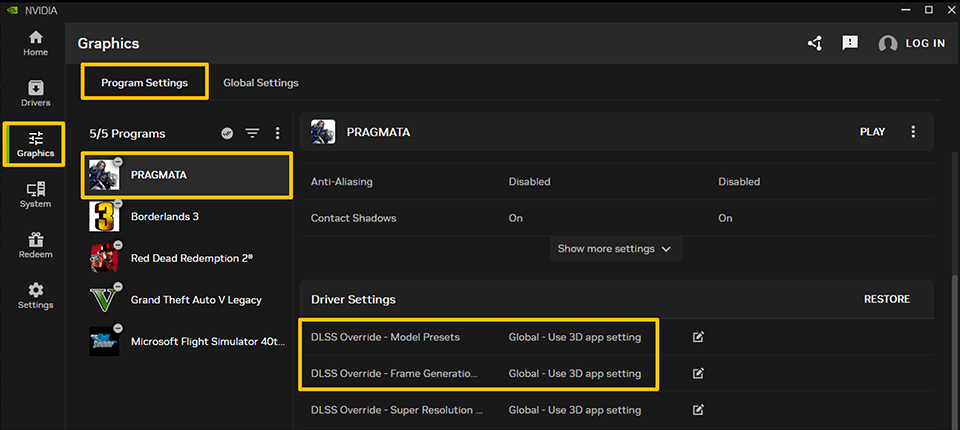
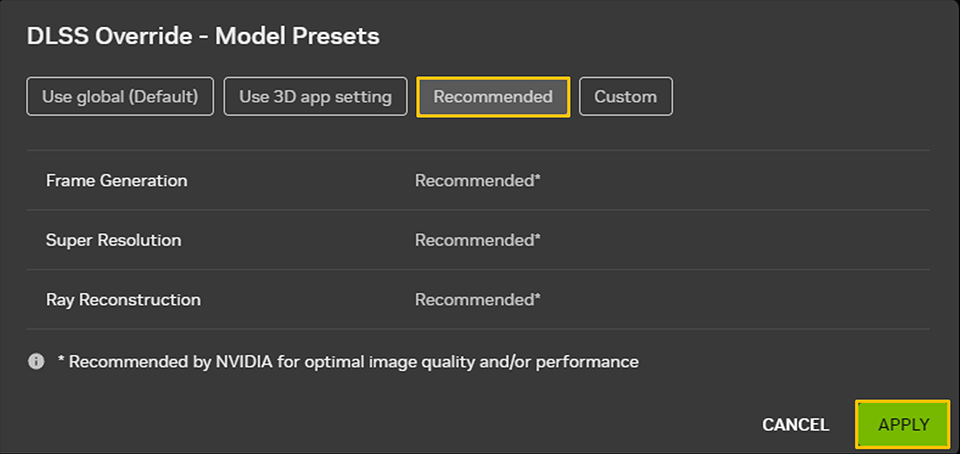
- Open the NVIDIA App and click the 'Graphics'' tab. Select 'PRAGMATA' under 'Program Settings' In the window that appears, click 'Recommend' and apply the changes. By enabling Ultra Performance, the game will utilize Preset L to enhance image quality.
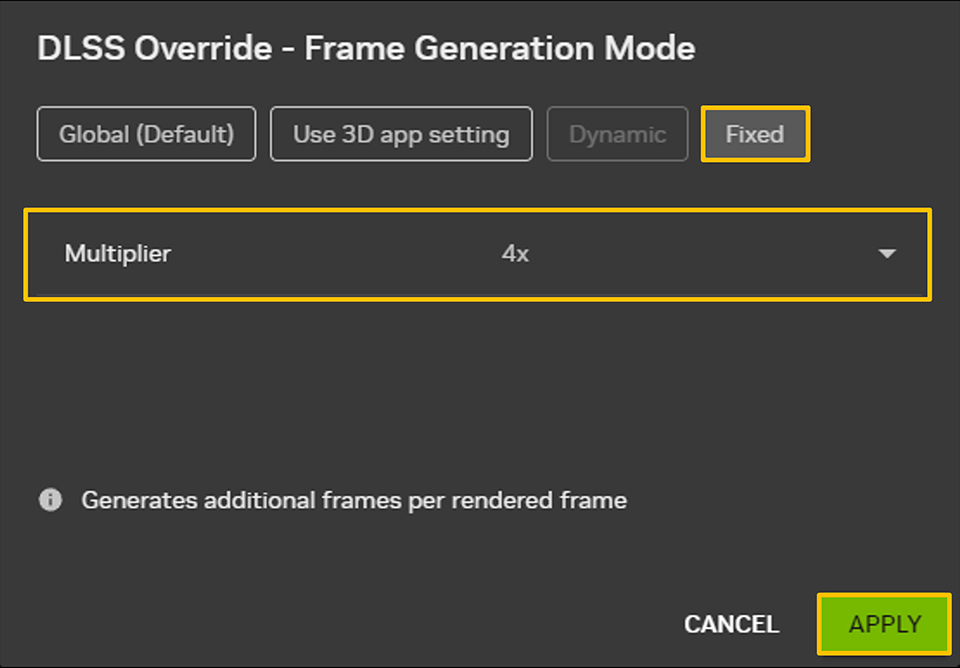
- Locate 'DLSS Override – Frame Generation' and click on 'Global - Use 3D App Setting' Change this to 'Fixed – Multiplier: 4x' When the confirmation window pops up, select 'Fixed' and '4x' to ensure your FPS consistently benefits from the 4x boost. Click apply to save your settings.
Once you have finished the setup above, head to the in-game graphics settings. Set DLSS Super Resolution to Ultra Performance and enable 4x in Frame Generation. Now, you’re ready to enjoy the ultimate PRAGMATA experience!
Here is the performance table we run for your reference.
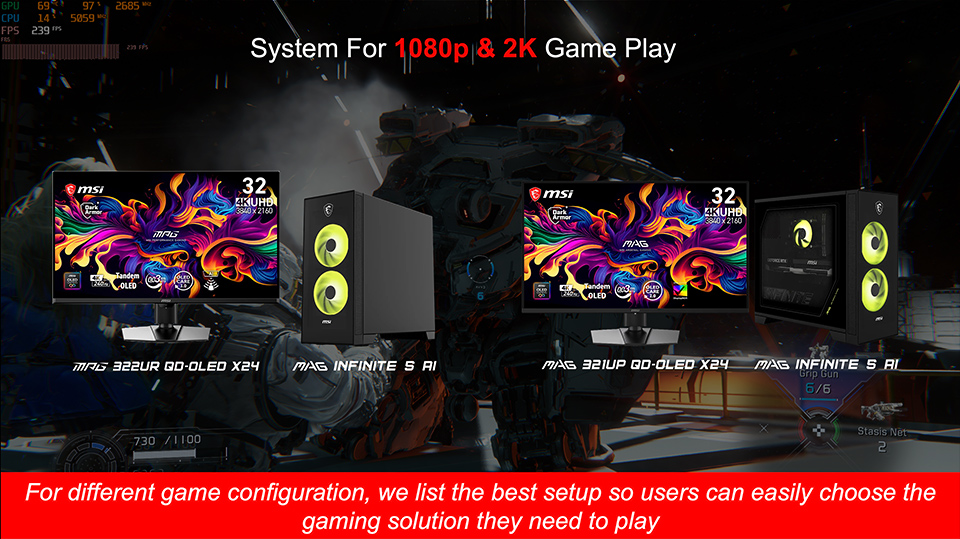
An MSI gaming solution is the best choice for playing PRAGMATA. The MAG Infinite S AI is a 25L mid-sized gaming desktop that comes equipped with an RTX 5060 Ti. By following this guide, you can easily set up your system to enjoy smooth, high-fidelity gameplay. If you decide to upgrade in the future, the system fully supports GPUs up to the RTX 5070 Ti without any issues. Paired with an MSI QD-OLED monitor, such as the MPG 322UR QD-OLED X24 or MAG 321UP QD-OLED X24, you are guaranteed the ultimate entertainment experience!
Get PRAGMATA for free! Select the qualifying product, submit your review, and enter for a chance to win a game code. Click the link below for more information.
https://www.msi.com/Promotion/pragmata-game-bundle
https://www.msi.com/Promotion/pragmata-game-bundle
Game Benchmark Finder is now live!
https://www.msi.com/Landing/find_my_favor
https://www.msi.com/Landing/find_my_favor
Curious how MSI pre-built desktops perform in your favorite games?
Visit Game Benchmark Finder to explore real-world FPS results across various titles and find the perfect MSI pre-built pc that suits your needs.