What is Firmware? How to Update the Firmware on MSI QD-OLED Gaming Monitors?
Monitors
Quick Summary
How to update your monitor firmware:
- MEG and MPG Series: Update via the Gaming Intelligence app.
- MAG Series: Update the firmware via the FW Update Utility from the MSI website.
*Note: If you have the MAG 341CQP QD-OLED, please use the Gaming Intelligence app.
What Does the Firmware Do?
In the world of technology, Hardware and Software are terms which most people are well acquainted. The monitors or PC towers we can see and touch are hardware, while the applications and games running within them are software. However, there exists a mysterious character positioned right between the two: Firmware.

To many, firmware remains a vague concept. Simply put, it is "software programmed into a hardware device" that provides the most fundamental control instructions. Without firmware, your monitor wouldn't know how to power on, and your graphics card wouldn't be able to communicate with the system. Firmware serves as the soul of the hardware, enabling it to perform basic tasks—this is precisely what sets it apart from software and hardware.
MSI Provides the Best Firmware Support on QD-OLED Gaming Monitors
Whenever there is a discussion on social media regarding the standout features of MSI Gaming QD-OLED monitors, "Firmware Update" is consistently cited as one of the answers.
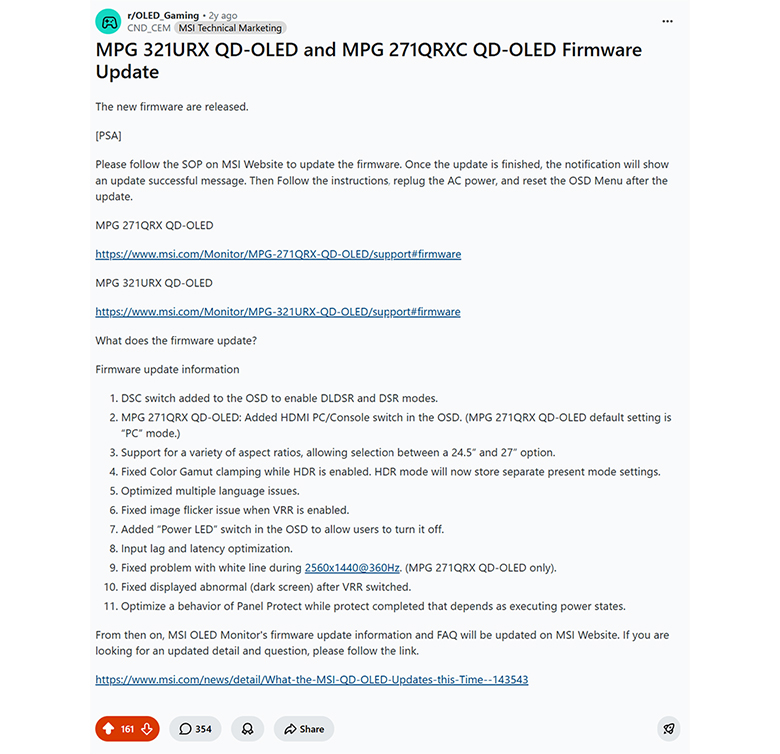
QD-OLED stands as one of the most advanced display technologies today. As this field continues to push the boundaries of innovation, MSI remains steadfast in its principle of technical advancement. We understand that for users, purchasing a monitor is more than just acquiring hardware—it is an investment in a long-term, premium experience. Consequently, our mission is to provide industry-leading features and seamless integration of hardware, software, and firmware. We are dedicated to ensuring that every user maintains stunning visual performance, powered by MSI technology.
In the past, MSI has delivered numerous new features to our users through firmware updates, such as support for a variety of aspect ratios, the DSC Switch, and EOTF Boost Mode. These consistent upgrades have not only garnered critical acclaim from the media but have also received positive feedback from our users.
How to Do Firmware Update on MSI QD-OLED Gaming Monitors
“The entire lineup of MSI QD-OLED Gaming Monitor supports firmware update functionality”.
You can easily obtain the latest firmware versions specifically tailored to your model directly from the MSI official website. With our firmware update tools, you can seamlessly infuse your MSI QD-OLED with the newest feature enhancements and performance.
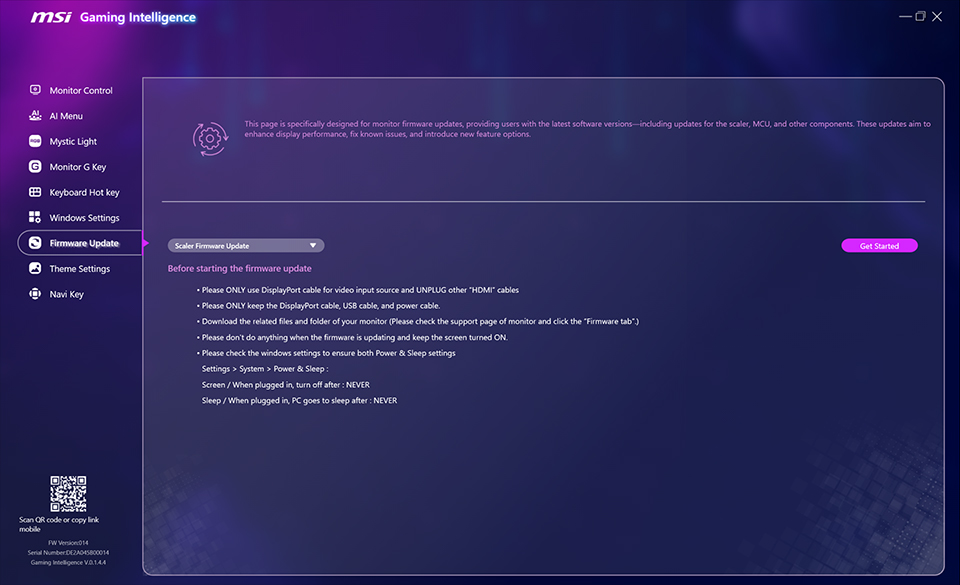
For users of the MSI MEG series and MSI MPG series QD-OLED Gaming Monitors, please use the Gaming Intelligence app to update the firmware.
1. Please prepare the DisplayPort cable and the USB Type-B cable included in the box, and connect them properly to your device and monitor. Ensure that only the DisplayPort cable and the USB Type-B cable are connected between your device and the monitor.
2. Launch the Gaming Intelligence app to proceed.
*If the application fails to open or cannot detect your device, please complete the uninstallation of the current Gaming Intelligence app, ensuring all residual files are removed. Then, visit the MSI official website to download and install the latest version.
3. Once inside the Gaming Intelligence interface, click the "Firmware Update" at the left side, choose the firmware type, and click "Get Started. From there, select the specific firmware file you previously downloaded from the MSI official website to initiate the update process.
4. Wait for the "Firmware update succeeded" message to appear, which confirms the firmware has been successfully flashed.
5. Once the update finishes, please complete these final steps to fully apply the update:
i: Reset the OSD settings.
ii: Unplug the monitor’s power cord and reconnect it.
ii: Unplug the monitor’s power cord and reconnect it.
Only by completing this full standard operating procedure is the update process truly finalized.
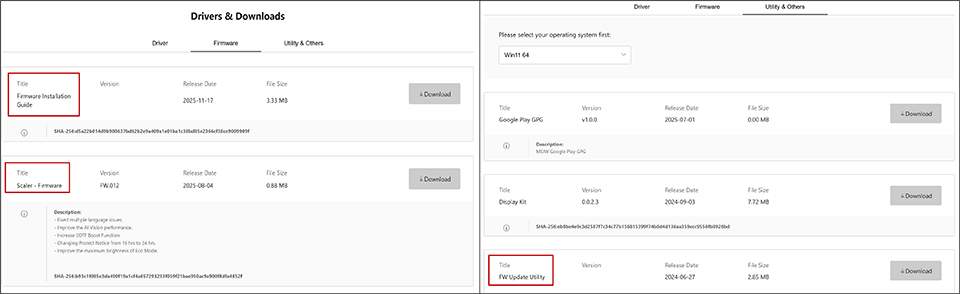
For MSI MAG series QD-OLED users, please visit the MSI website and search for your specific model. From there, you can download the firmware, the FW Update Utility, and the Firmware Installation Guide to walk you through the process.
*For more details, please refer to the Firmware Installation Guide for your specific model.
FAQ:
Q1: Should I update the firmware?
A1: Firmware updates generally serve two primary purposes. First are bug fixes: if your current experience is perfectly stable and you aren't encountering any specific issues, then updating is not strictly necessary. Second is the addition of new features, such as support for EOTF Boost Mode. If you want to use the new functions, we advise you to update the firmware to get more features.
Q2: Do I need to install every firmware sequentially, version by version?
A2: You only need to install the latest available version; there is absolutely no need to update through every version sequentially.
Q3: How to install the previous version of firmware?
A3: Download the specific version of firmware and proceed with the update.